
How to Contact Facebook (Meta) Support in 2026 — Live Chat, Forms, and Business Help Options
- 5 min read
- 29.07.2025
Running a business on Meta (formerly Facebook) comes with incredible opportunities—but also unexpected challenges. At any moment, your ad account might get restricted, your business page could be compromised, or billing and verification issues may bring your campaigns to a halt. When your revenue is on the line, getting fast, reliable support from Meta becomes urgent.
The problem? Reaching Meta Support as a business user isn’t always simple or intuitive.
That’s why we’ve created this up-to-date guide—to walk you through every legitimate method to contact Meta Support in 2025, with actionable steps, expert tips to speed up resolutions, and how our team can step in when your issue needs professional attention.
Different Ways to Contact Facebook Support for Your Business
There’s no single “Contact Us” button that works for every issue, but depending on your account type and problem, there are several effective ways to reach Meta Support. Let’s break down the best options, starting with the most accessible:
1. Use the Meta Business Help Center
The Meta Business Help Center is the official starting point for resolving any business-related issue on Facebook or Instagram. Whether you're dealing with a disabled ad account, billing errors, page access problems, or business verification delays, this hub provides the tools and information you need to get started.
Visit Meta Business Help Center
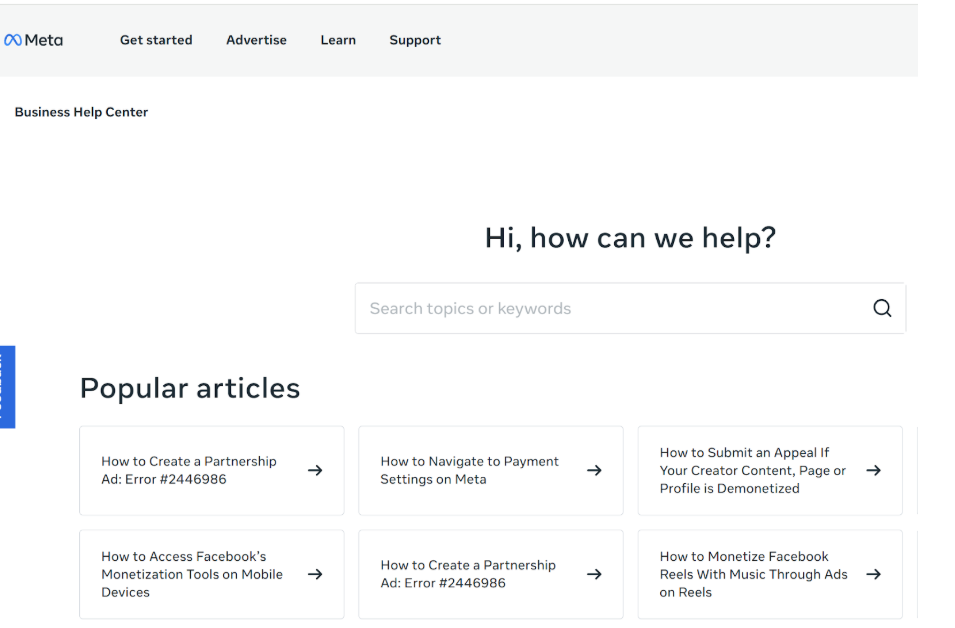
What You Can Do Here:
Step 1: Access Troubleshooting Guides
- Go to the Meta Business Help Center.
- Use the search bar or browse categories like:
- Ads
- Pages
- Billing
- Business Manager
- Commerce and Shops
- Click on a topic that matches your issue. Each article includes:
- A clear explanation of the problem
- Instructions with screenshots
- Links to deeper resources or related tools
- Follow the step-by-step instructions to attempt resolving the issue on your own.
Example: If your ads aren’t delivering, search “ads not delivering” and follow the checklist Meta provides.
Step 2: Submit a Support Request (If Needed)
- If the help article doesn’t resolve your issue, scroll to the bottom of the article. Some pages include a “Still need help?” link.
- Click the link to open a dedicated contact form.
- Fill in required details such as:
- Your business name
- Ad account ID or Page name
- A description of the issue
- Screenshots (if applicable)
- Click “Submit” to send the request to Meta's support team.
Meta will respond via your Support Inbox, so check back regularly for updates.
Make sure you’re logged in to the correct Business Manager account before accessing the Help Center. The tools and support options available are tailored based on:
- Your business’s ad spend history
- Your role within the account
- Whether your Business Manager is verified
If you’re managing multiple ad accounts or pages, double-check that you’re using the one associated with the issue.
2. Chat with a Live Support Agent (If Eligible)
- Go to the Meta Business Help homepage.
- Scroll down and click “Find answers or contact support.”
- Select the category that matches your issue (e.g., Ad Account > Ad Disapproval).
- If your business is eligible, you’ll see an option to “Chat with a representative.”
- Click it, fill in any requested info, and begin your live chat session with a Meta agent.
Live chat is typically available during business hours (Monday–Friday), and it's the fastest way to resolve most high-impact issues.
Not seeing live chat or contact forms?
That usually means your account doesn’t meet Meta’s eligibility for live support. But don’t worry—there are other ways to get help, which we’ll cover in the next steps.
3. Submit a Request via Facebook Business Support Forms
If live chat isn’t available for your account—or if you’re dealing with a specific, high-impact issue—Facebook provides a range of dedicated support forms tailored to different types of problems.
These forms go directly to Meta’s support team and are especially useful when your issue requires manual review, such as a disabled account or business verification problem.
Here’s how it works:
How to Submit a Facebook Business Support Form
- Choose the appropriate form based on your issue.
- Log in to the business account that owns the asset (ad account, page, etc.).
- Fill in the requested details—be specific and accurate.
- Upload any required documentation, such as:
- Government-issued ID (for identity or page verification)
- Business documents (for verification)
- Screenshots of errors or email notices
- Submit the form and keep a record of the confirmation.
- Check your Meta Support Inbox for updates and replies.
Common Facebook Support Forms for Businesses
Here are the most commonly used and effective support forms:
- Ad Account Disabled Appeal
If your ad account has been disabled for violating policies or by mistake use this form to request a review.
Submit Appeal - Page Disabled or Unpublished Appeal
For business pages that have been taken down or restricted, this form allows you to appeal the decision and provide context.
Request Review - Business Verification Help
If your business verification is pending, rejected, or stuck, this form helps you submit additional documentation or get support.
Verification Contact Form - Commerce Account or Shop Issues
For problems with your Facebook Shop, Catalog, or Commerce Manager—such as product disapprovals or account restrictions—use this form.
Commerce Contact Form
What to Expect After Submitting
- Response Times: Typically 24–72 hours, but some issues (especially involving verification or appeals) may take up to several weeks.
- Support Inbox: Replies and status updates will appear in your Meta Support Inbox.
- Follow-Up: If your case is closed without resolution, you can usually reply to reopen it—or resubmit a new request with clearer documentation.
When submitting a form, be concise but thorough. Clearly explain the issue, include key dates or account IDs, and attach relevant documents. The more complete your submission, the better your chances of getting a timely resolution.
4. Report a Hacked or Compromised Business Account
If your Facebook Business Page, ad account, or entire Meta Business Manager has been hacked or compromised, you need to act immediately. Time is critical. unauthorized access can quickly lead to stolen ad spend, deleted assets, and lost customer trust.
Fortunately, Meta has a dedicated recovery flow to help business owners secure their accounts and regain access.
How to Report a Hacked Facebook Business Account
- Visit Meta’s Compromised Account Portal
Go to: facebook.com/hacked - Select “My Business Account Was Compromised”
From the list of options, choose the one that matches your situation. If you lost access to your Business Manager, this is the correct path. - Follow the On-Screen Recovery Steps
Meta will guide you through several prompts to:- Identify the affected asset (page, ad account, or Business Manager)
- Confirm your identity and ownership
- Secure your login details
- Remove unauthorized admins or suspicious activity
- Submit a review request if needed
- Check Your Support Inbox
After submission, all recovery updates will be sent to your Meta Support Inbox or the email connected to your business account.
Why This is Urgent
If your business account is compromised:
- Hackers may run ads using your credit card, draining your ad budget within hours.
- They could delete pages, ad campaigns, or remove your team from admin access.
- Sensitive customer data, analytics, and communication channels may be exposed.
This isn’t just a tech issue, it's a business crisis.
If you suspect you were phished, immediately change all associated passwords (Facebook, business email, ad platforms, etc.) and enable two-factor authentication for every admin on your Business Manager.
Final Thoughts on Contacting Meta Support in 2025
Navigating Meta’s support system can feel overwhelming, especially when business operations are on the line. But with the right steps whether it’s using the Help Center, submitting targeted support forms, or acting quickly during account compromises—you can resolve most issues efficiently.
Frequently Asked Questions (FAQ)
1. Is there a direct phone number or email to contact Facebook Business Support?
No, Facebook (Meta) does not offer a public phone number or direct email address for business support. All assistance is handled through the Meta Business Help Center, support forms, or chat (if available). Any third-party offering phone or email support should be treated with caution.
2. Why don't I see the “Chat with a Representative” option?
Live chat support is only available to accounts that meet certain criteria, such as:
- Active ad spend within a recent time frame
- Verified Business Manager
- A history of ad use or high account activity
If you're not eligible, you'll only see self-service help articles or contact forms. Keep your ad account in good standing and increase activity to improve eligibility.
3. How long does Facebook Support take to respond?
Response times vary:
- Live chat: Typically responds in real time or within a few minutes.
- Support forms: 24–72 hours for most cases.
- Complex issues (like hacked accounts or business verification): May take several days to a few weeks depending on the severity and documentation provided.
Always check your Meta Support Inbox for updates, and be sure to respond promptly to follow-up questions.
4. What should I do if my Facebook ad account is disabled?
- Visit the Ad Account Disabled Appeal Form
- Provide clear, honest details and submit any required documents
- Wait for a response in your support inbox (avoid submitting multiple appeals this can delay review)
If you’re unsure why your account was disabled, start by reviewing Meta’s Advertising Policies.
5. How can I report a hacked business account or compromised page?
- Visit: facebook.com/hacked
- Select “My Business Account Was Compromised”
- Follow the account recovery steps
- Change all passwords, review admin roles, and enable two-factor authentication
6. What can I do if my business verification is stuck or rejected?
- Use the Business Verification Contact Form
- Double-check that your business name, address, and documents match exactly
- Submit clear government-issued business documents (like utility bills, tax registration, or business license)
If your request is rejected, you’ll usually get another opportunity to resubmit corrected documents.
7. Can I get support even if I haven’t run Facebook ads?
Support access is limited for businesses with no ad spend or recent activity. However, you can still:
- Use public help articles on the Meta Business Help Center
- Submit forms for some issues (e.g., Page disabled, verification)
- Consider working with an agency or Meta Business Partner for faster support escalation
8. How do I check the status of my support request?
Visit your Meta Support Inbox while logged into the business account that submitted the request. There, you can:
- View ongoing and past support tickets
- Respond to Meta’s questions
- Upload additional documents if requested
9. What if Facebook closes my case without resolving the issue?
You have a few options:
- Reopen the ticket by replying directly in the support inbox
- Submit a new request with more detail or clearer documentation
- Escalate through another channel (like a different support form or live chat, if available)
Contact a professional who can assist with escalations (see our expert support section below)



.avif)